
It’s becoming clearer that scams are going beyond the email phishing emails we’ve become so familiar with. Microsoft Teams has become a hotbed of impersonation scams. We’ll be highlighting the ones that you and your team should be aware of.
What Microsoft Teams impersonation scams should I be looking out for?
An impersonation attack is a message from a scammer, posing as someone in your business. It’s often someone in from IT or payroll. They may ask you to click on a link, share your screen or provide sensitive credentials.
“The Microsoft Teams help desk impersonation attack works because it weaponises trust,” said Andrea Sivieri, chief product and technology officer at CoreView . “Organisations are putting themselves at risk because native M365 controls were built for administration, not for resilience against real-time social engineering.”
He added that, for hackers, all they need is a few user-approved clicks and they have gained access to Quick Assist as well as the victim’s email and other accounts. This leads to data exfiltration over HTTPS. All of it happens without triggering any suspicion.
But once they’re in, the attacks could keep coming.
“Data theft is just the opening move,” said Sivieri. He said that once attackers have privileged access through this kind of social engineering, the same foothold opens the door to full tenant ransom scenarios. Attackers can encrypt OneDrive and SharePoint content at scale, locking legitimate administrators out of the tenant by hijacking Global Admin accounts and conditional access policies.
They can also hijack native M365 features like sensitivity labels, that render data inaccessible, without ever deploying traditional ransomware. Recovery from a tenant takeover can take weeks and often requires Microsoft to intervene directly.
“We’ve seen cases where businesses lose access to critical M365 services for weeks because they have to reconfigure their tenants from scratch,” said Rob Edmondson, principal technologist of Microsoft 365, also at CoreView. “Microsoft doesn’t provide a backup for these configurations. Because Microsoft doesn’t alert security teams when configurations are changed, these attacks can be difficult for traditional security tools to detect.”
Businesses need to treat their Microsoft 365 tenant as critical infrastructure, he concludes. This could mean segmenting tenants to reduce the blast radius, detecting when configurations are changed, and keeping a backup of your tenant configurations so you can restore them quickly if attackers change them.
Now, lets get into the specifics of what attacks you might experience.
Urgent meeting requests
In these cases, attackers use urgency in their messaging to encourage you to act quickly. They’ll often be framed as IT security alerts or some kind of billing issue. Again, they’ll usually be from a support service such as IT, with a fake checkmark to try and prove authenticity. They may ask you to download fake remote support tools like some version of Quick Assist which is a fraudulent imitation of the real thing. It might be the case that they direct you to fraudulent websites or convince you to download files containing malware.
Teams meeting scams
Again, scammers on a voice call could be impersonating someone from HR, finance or IT. However, if you frequently work with people outside the business, scammers could be impersonating them, too. It all seems perfectly legitimate, chatting to a long-time contact, until you come across an odd request such as ‘use desktop only’. That’s often because scammers’ malicious software only runs on PCs.
The scammer will ask you to run some kind of script in your command prompt, reassuring you that it’s okay to do so. They’ll pressure you with the prospect of letting down clients by not being able to access the meeting.
There are red flags for you to be on the hunt for. More on that in a minute.
QR code
This tactic is called ‘quishing’. A scammer will impersonate a member of your organisation and send you a QR code, asking you to scan it urgently and complete a task. It could be something like updating your login details or verifying your account.
You’ll then be redirected to a phishing site that look like a Microsoft verification site. The scammers will capture your info after you’ve logged it and use that to let themselves into your system. From there, they can steal data and enact ransomware attacks.
Nefarious links in chat
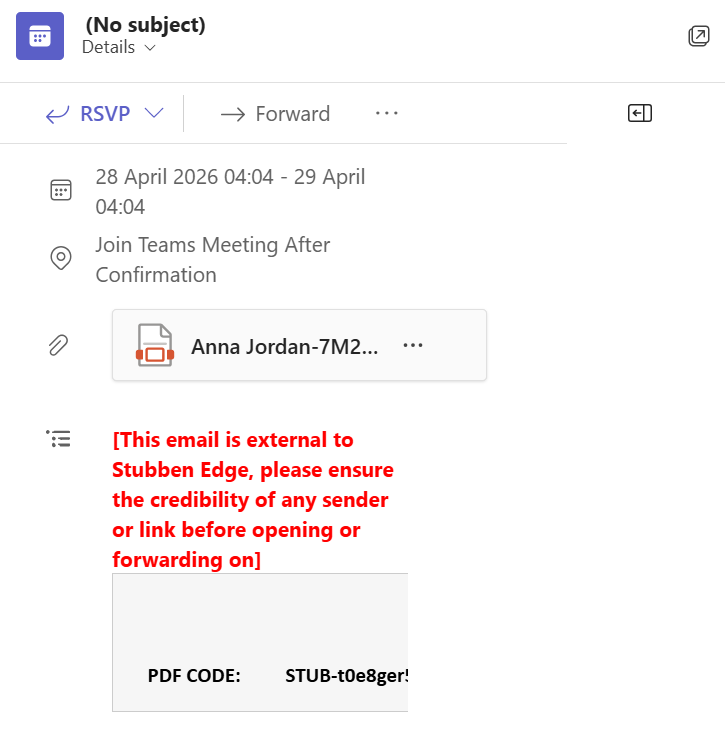
Some impersonators might simply send you fraudulent links in chat or false meeting requests. It works in much the same way as the scams above, but it’ll just be the link without the elaborate set-up. The link could be to something like an update request or account verification.
Be extra cautious if you get a random link or meeting invitation that you’re not expecting, like I did.
How to prevent Microsoft Teams impersonation attacks
There are plenty of things that you can do to protect your business that won’t blow your IT budget.
General
- Look out for signs of the person being from outside your organisation. It’ll usually be marked as [External] or similar. If in doubt, don’t engage with it.
- Be suspicious of vague or generic language. People in your company teams will know more about software you use and other members of your team, for example.
- Disable external messages. This one works better for employees who don’t interact with anybody outside the company. Any risk limitation is beneficial.
- Provide training for your team. They’ll be better able to recognise where they may be targeted along with tell-tale signs of phishing and other scams.
- Enable multi-factor authentication (MFA). Do this as far as you can.
- Make sure your anti-virus, firewall and other security features are up to date. Classic advice, but still worth mentioning. Updated software closes up any security gaps from previous versions.
- Verify suspicious messages through a separate channel. Contact IT on email, for example, just to make sure that it’s them.
- Ask HR, finance and IT to confirm actions they’re taking by contacting staff through a separate channel. If you have payroll and IT teams, ask them to confirm actions they need to take by calling or emailing staff members before they do so.
- Disable the Quick Assist function. Microsoft’s Quick Assist easily allows users to share their screen or hand control of their machine over to another person. Unless it’s business critical, do away with it.
For Microsoft Teams meetings
- Never run commands from a meeting page. You’ll probably be pressured into acting quickly to join the meeting, another red flag.
- Be aware of completing “powershell -ep bypass” and “iex” commands. The former will disable your security; the latter executes downloaded code without further prompts.
- Check for unusual URLs. Microsoft meetings should have teams.microsoft.com or teams.live.com.
- Don’t join meetings that are ‘desktop only’ or similar. Scammers want you to join on the machine that you primarily use for work so that they can access your files or spread malware. As mentioned, the malicious software that they use may only run on desktop.
Read more
How to provide cybersecurity training for your home workers – Find out what cybersecurity training information to include, how to deliver it and what follow-up resources to provide for your home workers